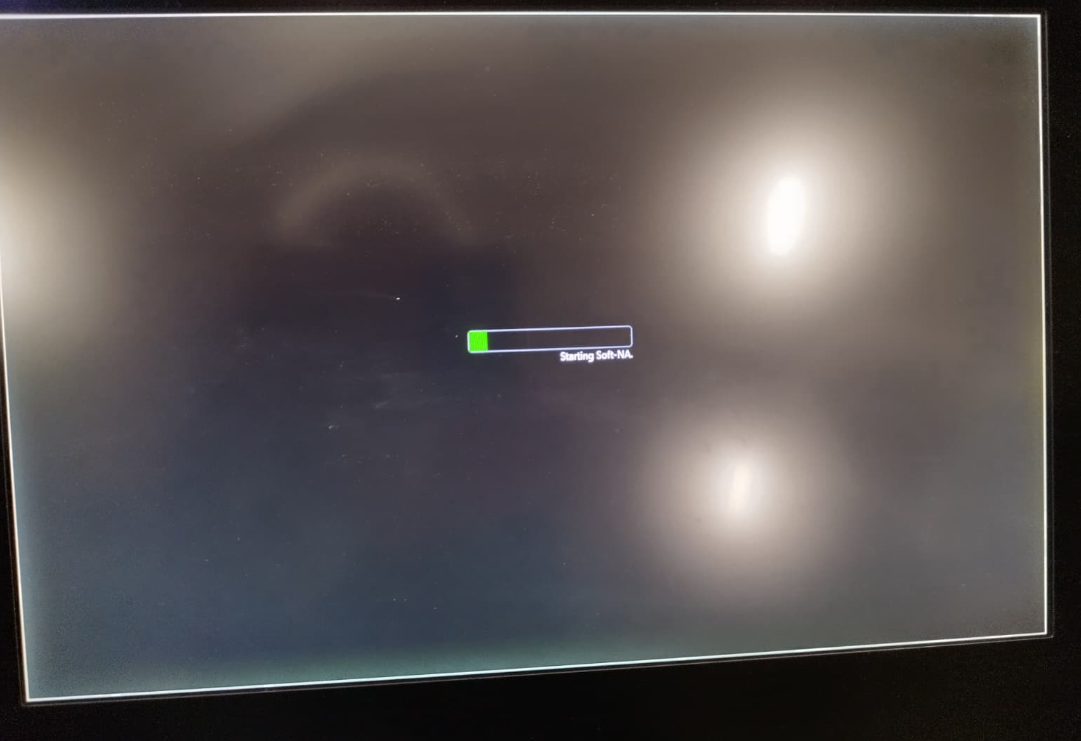
Problem: The following screen is constantly displayed.
Solution 1
Proceeding with the instructions will result in the deletion of the project files. You must ensure that you have followed the steps regarding saving the project to a different location—either on the HMI drive or a USB drive—to serve as a backup.1) There should be installation file for SoftNA on the HMI hard drive. Most of installation files are stored there after first instalation.
2) If installation file is missing, you can download it from SBU Robotics sharepoint or create a ticket.
3) Copy all files from This PC > Local Disk (D:) > Omron > Soft-NA > Projects This should be treated as one of the backup files.
4) Reinstall the SoftNA by double clicking the installation file.
5) Paste back all files into : This PC > Local Disk (D:) > Omron > Soft-NA > Projects
6) Run SoftNA
7) Be sure that SoftNA is starting automatically with windows
Solution 2 (Sysmac required)
1) Reinstall SoftNA on the HMI. An upgrade is possible; this has been tested upgrading from version 1.02 to 1.04.
2) In Sysmac, open the program backup and transfer the HMI project.
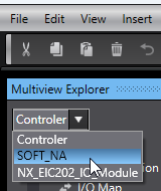
3) In Sysmac Studio software and choose SOFT_NA
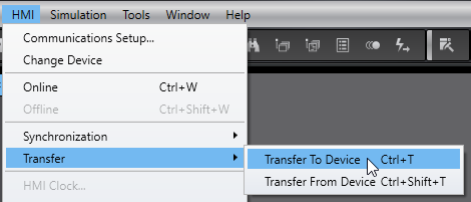
4) Go to -> HMI -> Transfer -> Transfer To Device
5) Mark all checkboxes and transfer to HMI
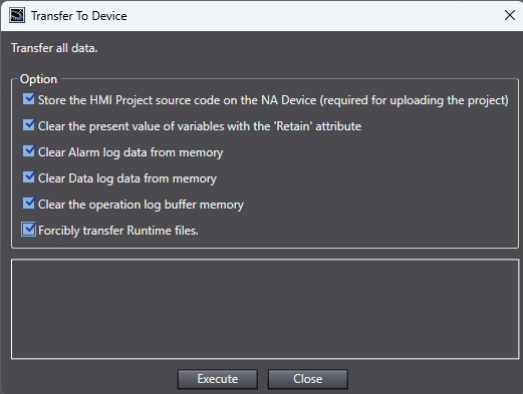
6) Runtime should start automatically
7) Close it or restart computer
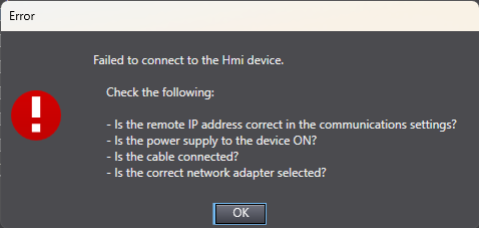
8) If there is an transfer error do step 7 - 10
9) Open Control Panel on HMI
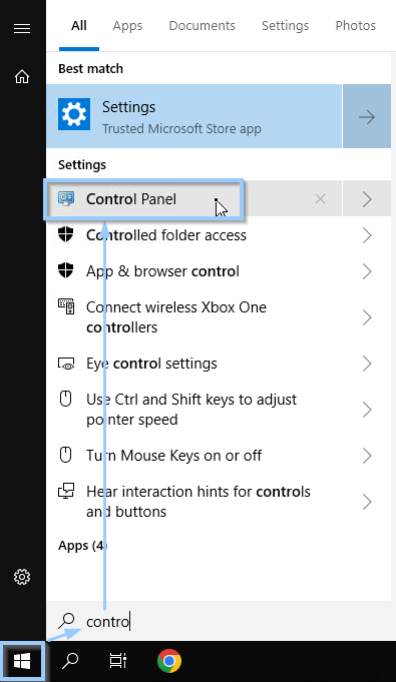
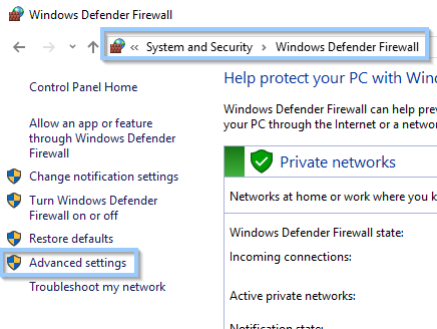
10) Go to Windows Defender -> Advanced settings